VueScan Touch Up: Remove Dust, Scratches, and Imperfections from Your Scans

Old photos and film scans often have dust specks, scratches, or small blemishes that distract from the image. VueScan’s new Touch Up feature lets you paint over these imperfections and remove them with a single click — no external editing software required.
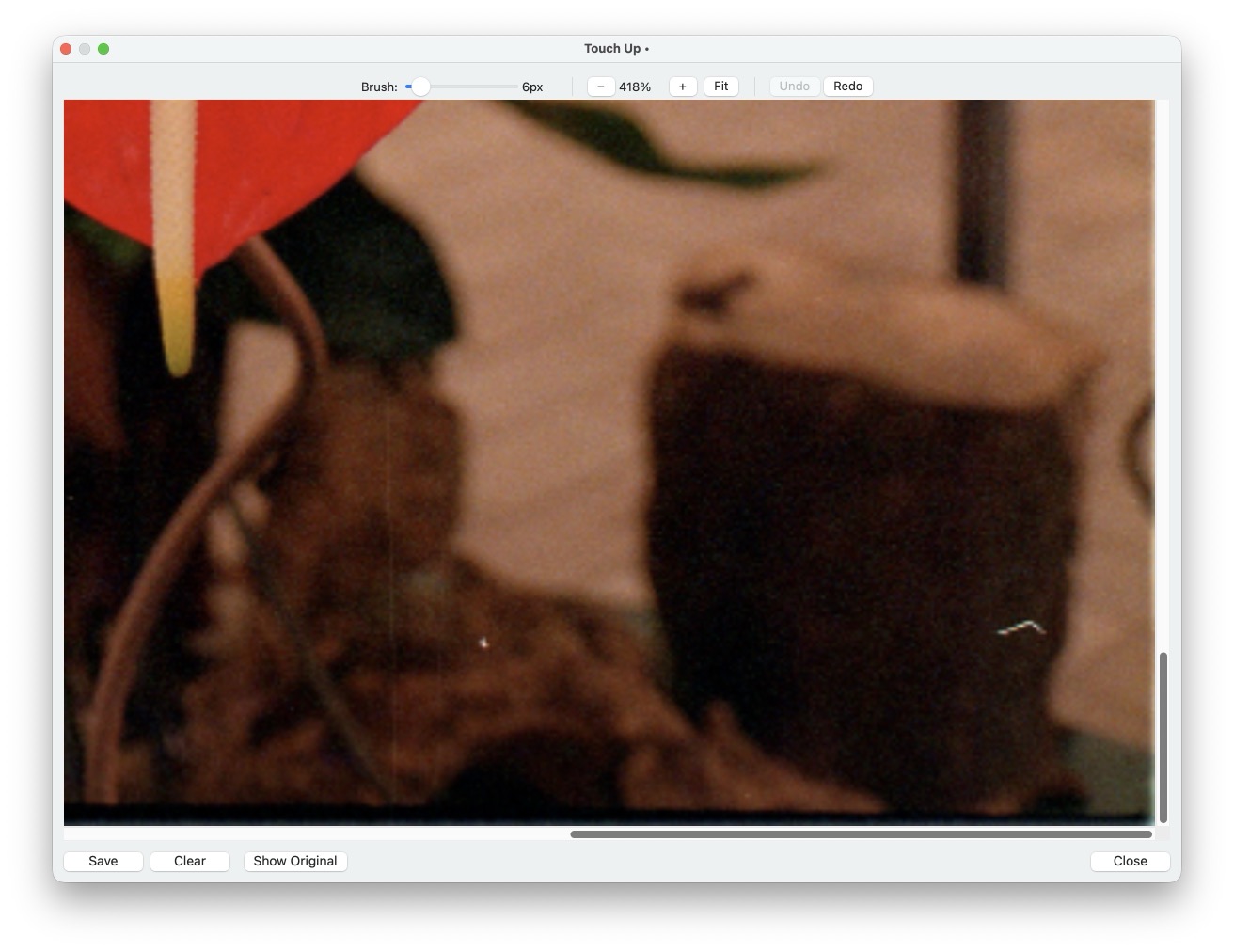
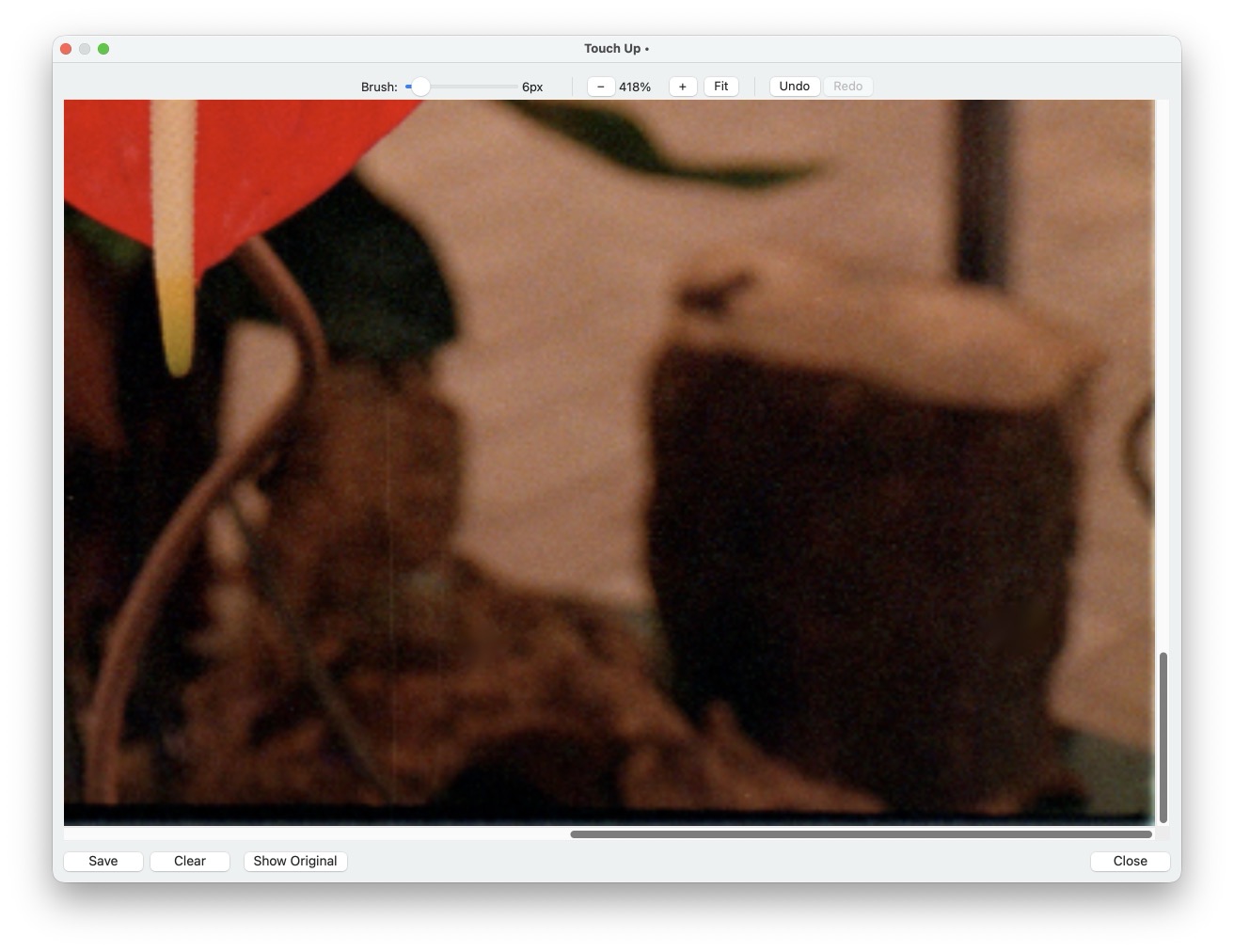
Removing dust and a stray hair with VueScan's Touch Up
How It Works
Touch Up uses content-aware inpainting to fill in marked areas based on the surrounding image content. The process is simple:
- Open an image or scan one directly from the Touch Up dialog.
- Paint over the imperfection using the brush tool. Adjust the brush size with the slider to match the area you want to fix.
- Release the brush and VueScan automatically fills in the painted area, blending it seamlessly with the surrounding image.
That’s it. No layers, no clone stamp, no learning curve. Paint over the problem and it disappears.
Smart Mode Detection
Touch Up automatically analyzes your image to determine the best inpainting approach:
-
Photo mode — Used for photographs, film scans, and natural images. The algorithm reconstructs texture and color from surrounding pixels, producing natural-looking results for dust removal, scratch repair, and blemish correction.
-
Document mode — Used for scanned documents, receipts, and text. The algorithm identifies the background color and removes stray marks while preserving clean, uniform backgrounds. Ideal for cleaning up old documents or removing stamps and annotations.
You don’t need to choose — VueScan detects which mode to use based on the image content.
Full Editing Controls
Touch Up includes everything you need to work precisely:
- Adjustable brush size — Scale from fine detail work to broad area coverage.
- Zoom in and out — Get close to see exactly what you’re fixing.
- Undo and redo — Experiment freely. Every inpaint operation can be undone and redone.
- Show Original — Hold the button to compare your edits against the original image instantly.
- Drag and drop — Drop image files directly into the Touch Up window.
When to Use Touch Up
Touch Up is designed for small, localized imperfections — the kind that show up on nearly every scan:
- Dust and lint on flatbed glass or film holders
- Scratches on old negatives and slides
- Small blemishes on printed photos
- Stray marks on scanned documents
- Date stamps or small annotations you want to remove
For these common problems, Touch Up saves you from opening a separate photo editor. Fix imperfections right inside VueScan and save the cleaned-up image directly.
Edition Requirements
Touch Up is available in the Standard and Professional editions of VueScan. You can access it from the File menu (File | Touch Up) or from the toolbar button.
Get Started
Touch Up is available now in VueScan 9.8.53. Open an image you’ve already scanned or scan a new one, paint over the dust and scratches, and save a clean result — all without leaving VueScan.