VueScan 9.8.54: Touch Up 2.0 with On-Device AI

A few months ago we introduced Touch Up, a built-in way to paint over dust, scratches, and small blemishes and have VueScan fill them in for you. It worked well for simple defects, but reconstructing fine detail — skin, hair, fabric, sky gradients — was hard with classical inpainting alone.
VueScan 9.8.54 introduces Touch Up 2.0, a major upgrade that adds on-device AI models to Touch Up. The new models look at the whole image around the area you’ve painted and reconstruct what should be there — not just by extending nearby pixels, but by understanding the content. The result is dramatically more natural inpainting, especially over larger imperfections and detailed image areas.
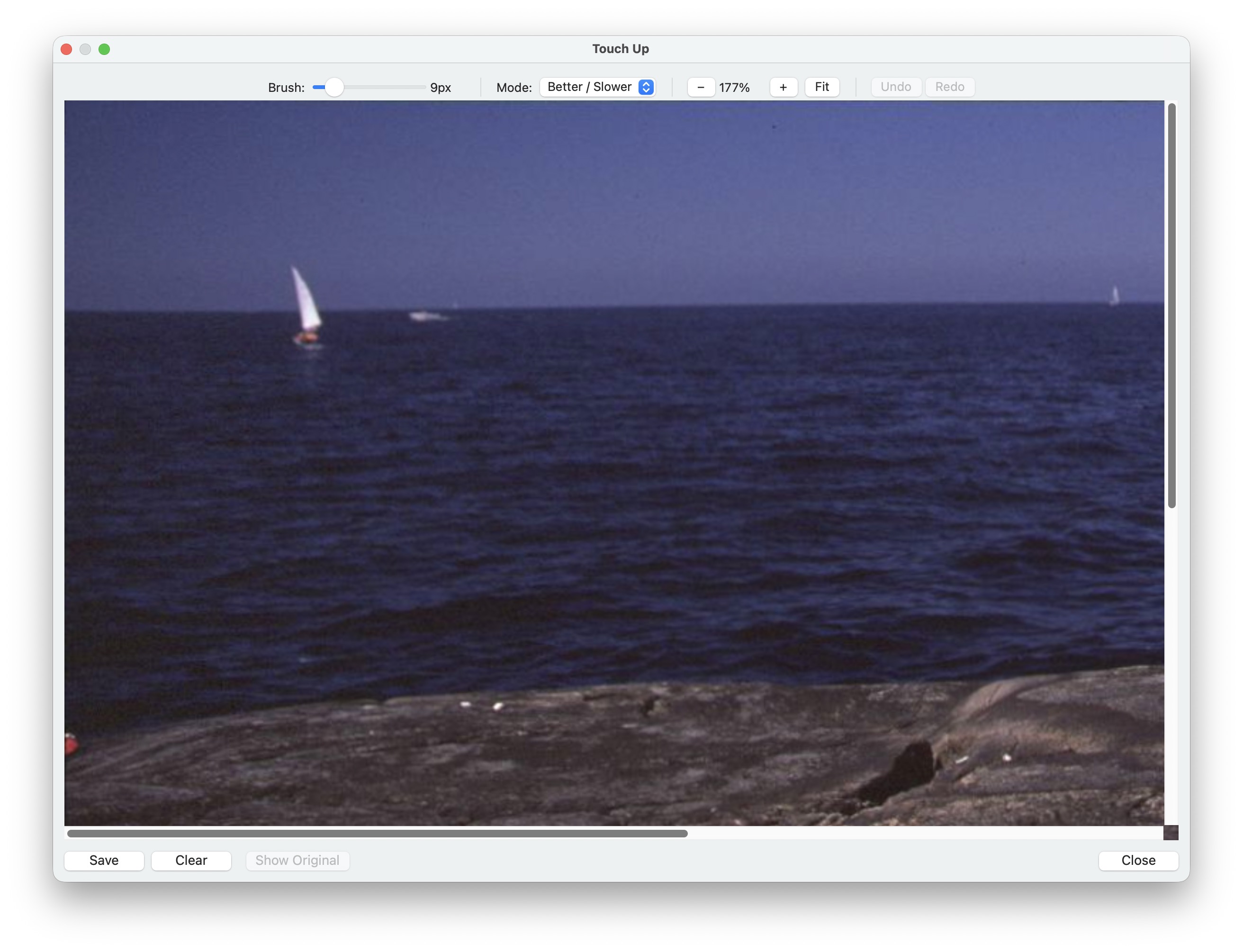
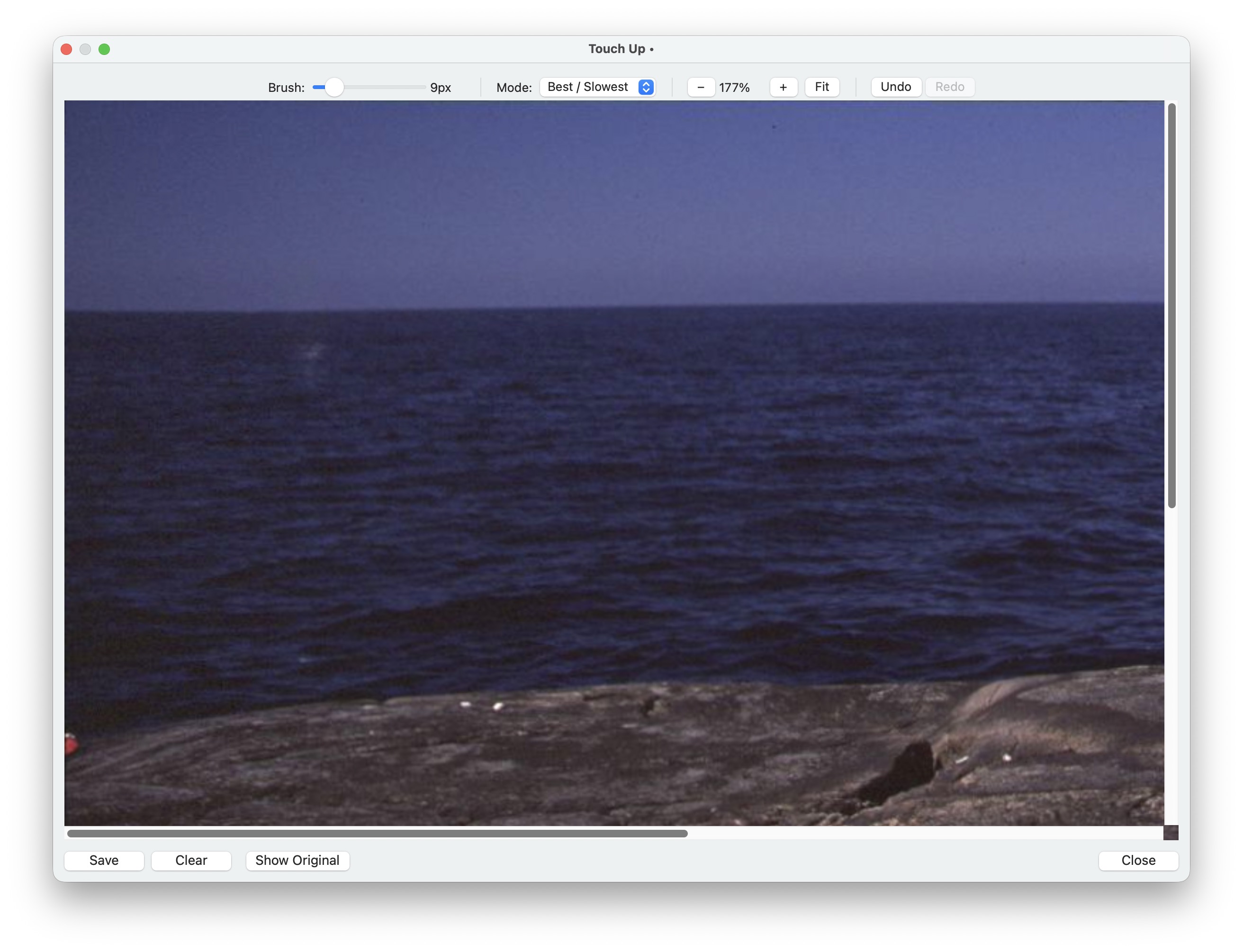
Removing background objects from an old slide with Touch Up 2.0
Three Quality Levels
Touch Up 2.0 adds a Mode menu to the Touch Up window so you can choose how much processing power you want to spend on each fix:
-
Good / Fast — The original Touch Up algorithm. Instant results, and a great choice for small dust specks or single-pixel scratches.
-
Better / Slower — An AI inpainting model that takes a few seconds per fix. It produces much more natural results than the original algorithm, especially when the area you’re painting over crosses different textures, colors, or edges.
-
Best / Slowest — A larger, more capable AI model that takes longer per fix but produces the most natural results, particularly for larger defects and detailed image content.
The AI models are downloaded on demand the first time you pick them, then cached for future use. The Better model is about 25 MB; the Best model is about 390 MB. Once downloaded, everything runs entirely on your computer — your scans are never uploaded anywhere.
Best Mode on macOS
The Best / Slowest mode is available on macOS only. It relies on Apple’s Core ML framework, which lets the model run efficiently on Mac hardware (including the Neural Engine on Apple Silicon). The Good / Fast and Better / Slower modes are available on all platforms — Windows, macOS, and Linux.
Same Workflow
The way you use Touch Up hasn’t changed. Open an image, paint over the imperfection with the brush, and release. The only addition is the Mode menu in the toolbar — pick the quality level you want and VueScan does the rest.
You can switch modes at any time. If you’re cleaning up a lot of small dust specks, stay on Good / Fast and rip through them. When you hit something harder — a scratch through someone’s face, a tear across a sky — switch to Better / Slower or Best / Slowest for that fix, then switch back.
Touch Up 2.0 still automatically detects documents and uses the dedicated document mode for them, so this Mode menu is only shown when you’re working on a photo.
Get Started
Touch Up 2.0 is available now in VueScan 9.8.54 in the Standard and Professional editions. Open the Touch Up window from the File menu or the toolbar button, pick a Mode, and paint.