VueScan's Redesigned Interface: Guide Me, Recent Scans and More

Over the last several releases we’ve been reworking VueScan’s interface. Most of these changes are small on their own, but together they make VueScan easier to find your way around, especially on high-resolution displays. The biggest addition is Guide Me, a new way to scan that walks you through each step. Here’s what’s new.
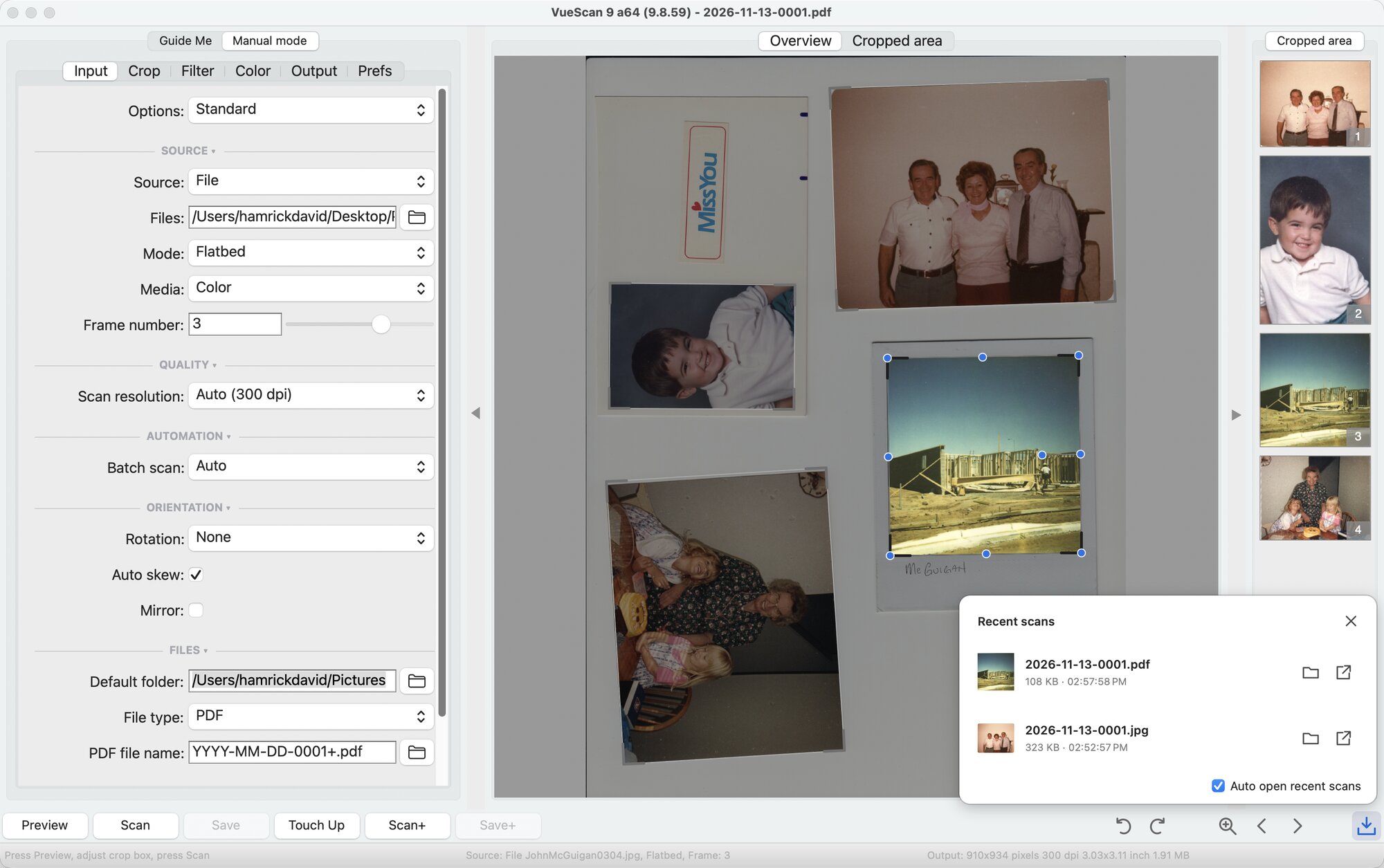
The Input tab with collapsible sections, and the Recent Scans tray after saving two scans
Recent Scans
After you save a scan, a Recent scans tray opens in the lower right corner of the window. It lists the files you’ve saved during this session with a thumbnail, the file size and the time you saved it. Click a file to open it, or click the folder button to show it in Finder or File Explorer.
Files you save from Touch Up, Stitch images, Colorize and Super-resolution show up in the tray too, so you no longer have to go looking for them.
If you’d rather open the tray yourself, uncheck Auto open recent scans. You can open it any time with the button in the lower right corner of the window.
Collapsible Option Sections
The options on each tab are now grouped under headings. On the Input tab, for example, you’ll see Source, Quality, Automation, Orientation and Files. Click a heading to fold away a group of options you don’t use, and click it again to bring them back. VueScan remembers which sections you’ve folded the next time you start it.
Guide Me
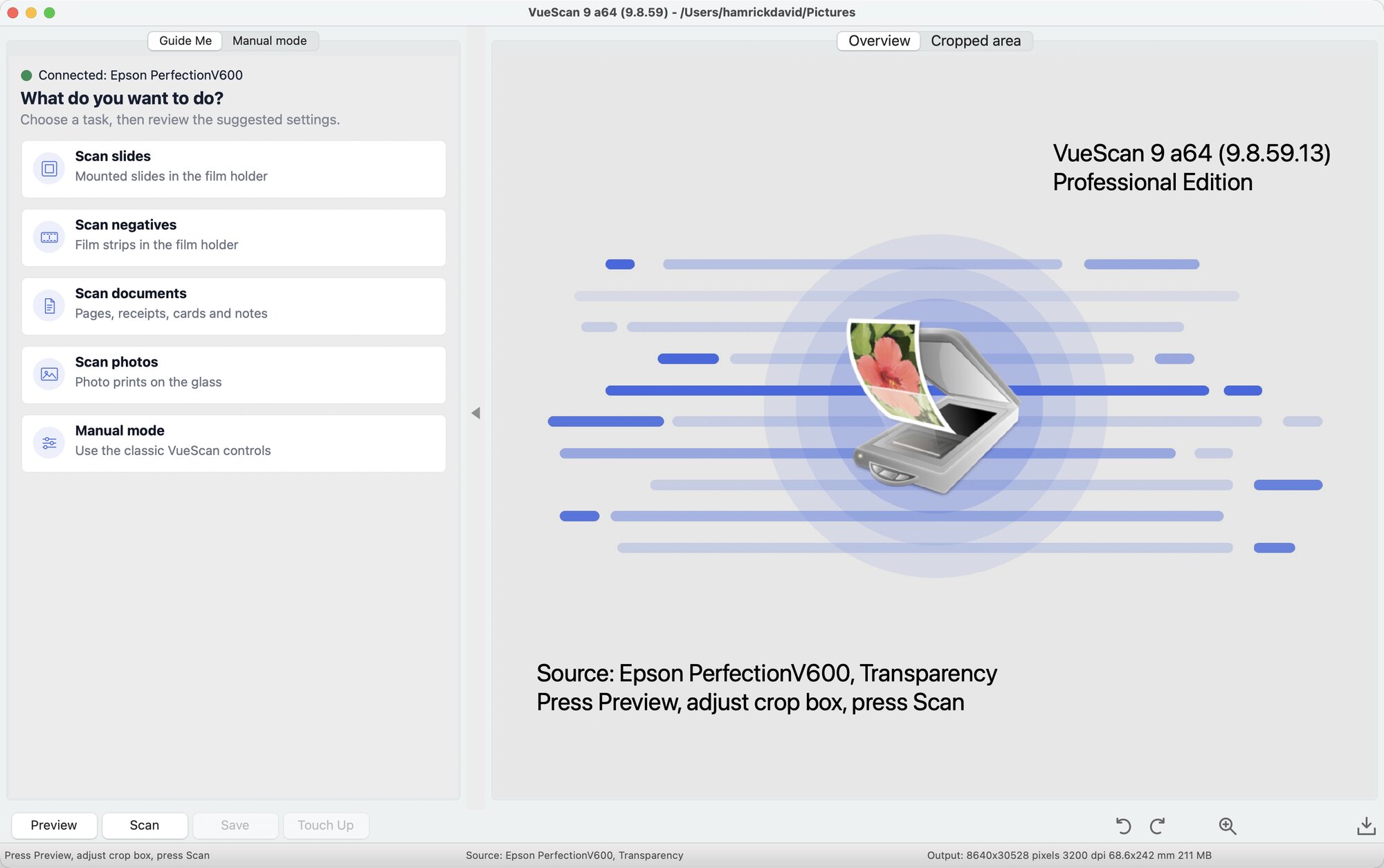
Guide Me asks what you want to scan and sets up VueScan for you
VueScan has always given you a lot of control, and that can be a lot to take in the first time you use it. Guide Me is a new tab next to Manual mode at the top of the options panel that walks you through a scan step by step.
Pick what you want to do: scan slides, negatives, documents or photos. For documents, Guide Me asks a few follow-up questions, like whether you’re using the glass or the document feeder, whether to scan one side or both, and whether you want one PDF or separate JPEG files. It then shows you the settings it will use, and walks you through Preview, Scan and Save.
Manual mode has all of the classic VueScan controls, and you can switch between the two tabs at any time. VueScan opens in Manual mode, so click Guide Me when you want to use it.
OCR Text Window
VueScan can now show you the text it recognizes in a scan. After you preview or scan a document, click the OCR button just to the left of the Recent Scans button in the lower right corner of the window, or use Edit | View OCR text. VueScan reads the text inside the crop box and shows it in its own window.
You can choose the OCR language, edit the text to fix any mistakes, and click Copy All to paste it into another program. It’s a quick way to get the text from a letter, receipt or article without saving a PDF first.
Sharper Icons
The rotate, zoom and page buttons below the preview, and the folder buttons next to file and folder options, are now drawn as vector graphics. They stay sharp at any size, including on high-resolution displays.
Tooltips for file and folder options also show the full file name and folder path, so long paths are no longer cut off.
A Cleaner QuickView
To see a larger version of a thumbnail, click it and press the space bar. QuickView now has a dark background so it’s easy to tell apart from the preview. The file name and page number are shown above the image, with buttons to step to the previous or next page and a Close button (or press Escape).
Reset Buttons
The Default options checkbox on each tab is now a Reset button. Click it to put that tab’s options back to their default values.
Dark Mode
VueScan has a dark mode. Turn it on with Prefs | Dark mode. On macOS and Linux the change happens right away; on Windows it takes effect the next time you start VueScan. VueScan’s dark mode is set in VueScan itself, so it doesn’t change when you switch your computer between light and dark mode.
Get the Latest Version
All of these changes are in the latest version of VueScan, which you can get from our download page. If your free updates have ended, you can get the latest version through the VueScan Update Program.