
Microtek FilmScan 2700 Driver
VueScan Scanner Software
VueScan is an application for scanning documents, photos, film, and slides on Windows, macOS, and Linux.
Download VueScan for other operating systems or older versions
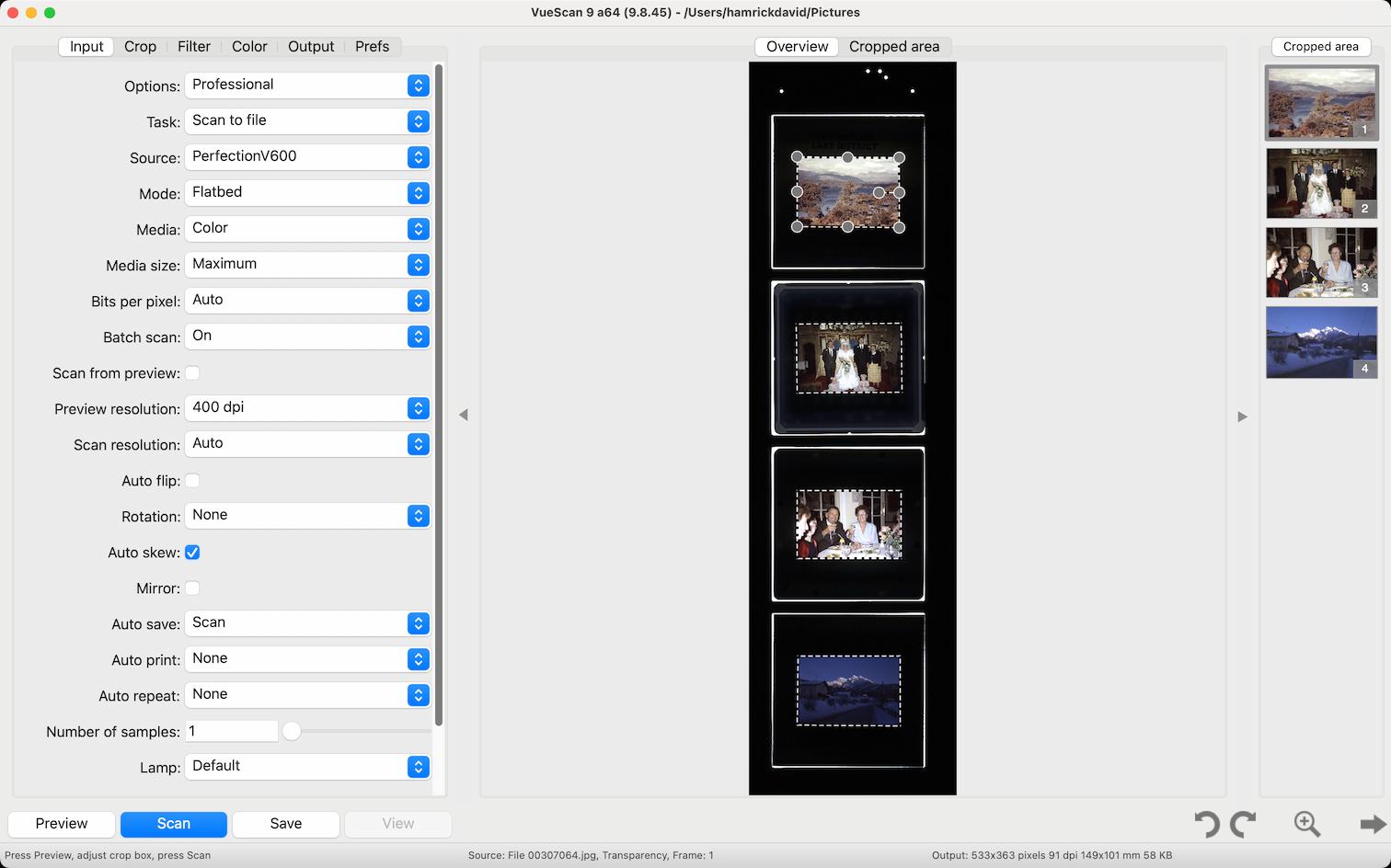

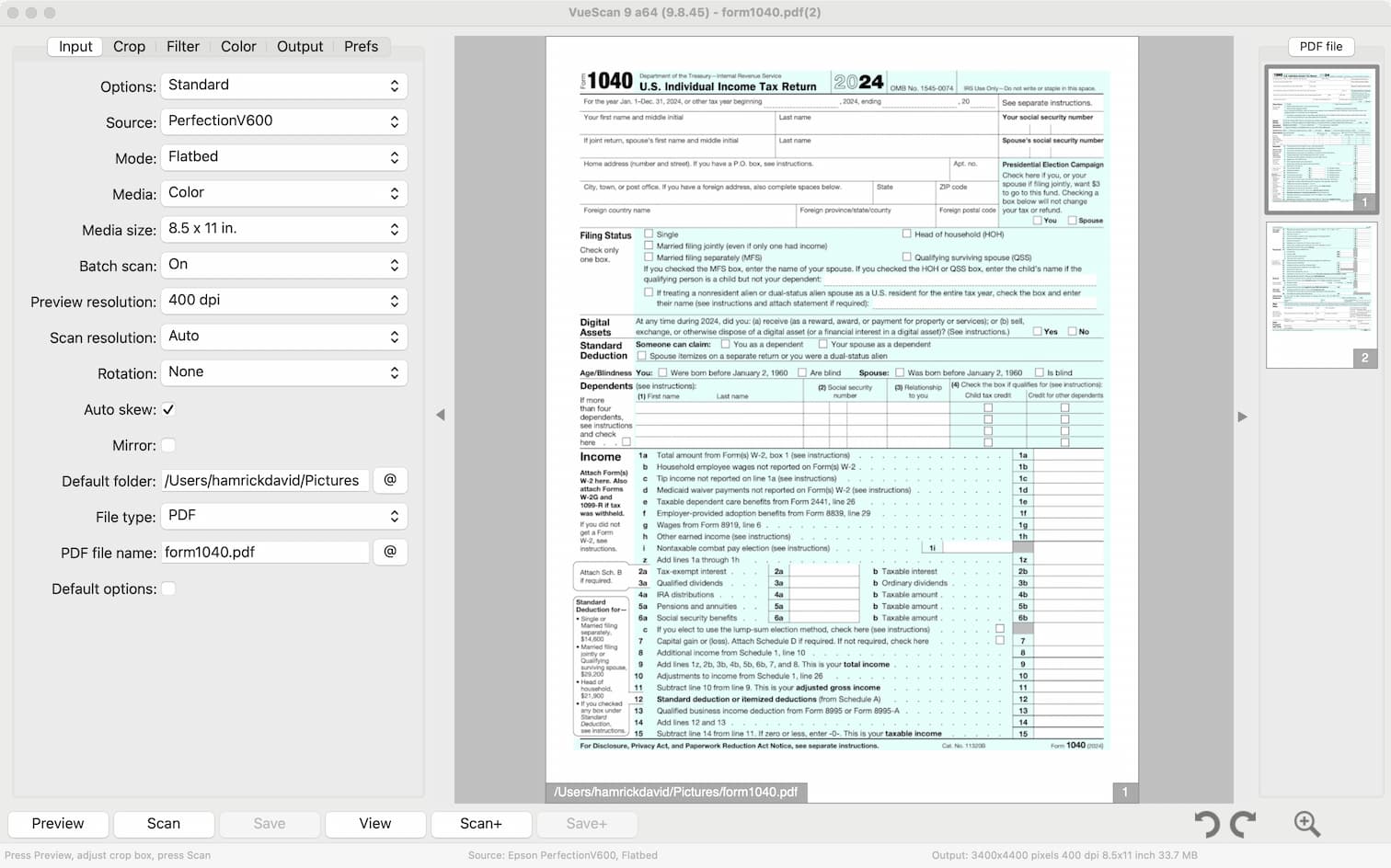
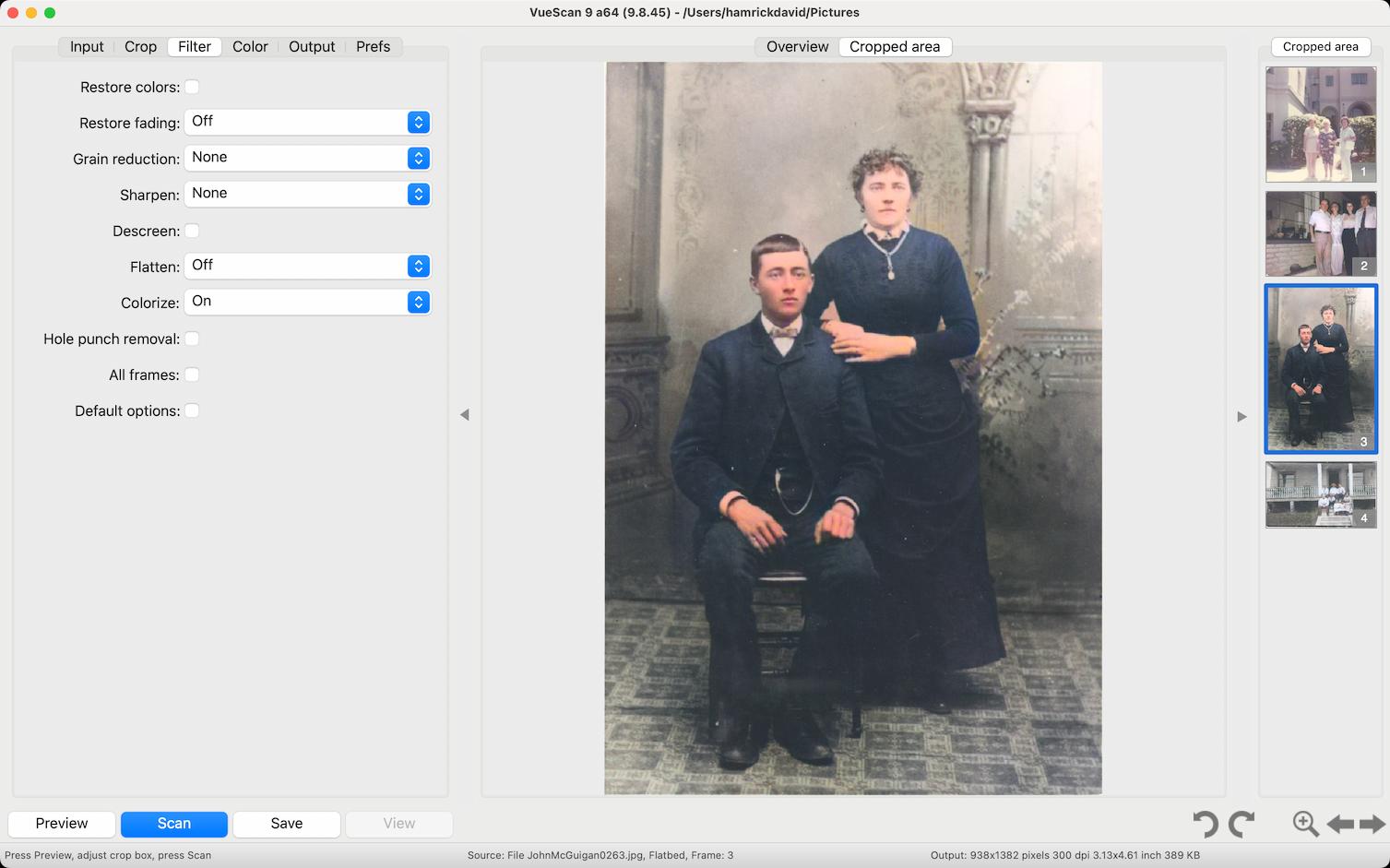
The Universal Scanner Software
VueScan is a scanning application for Windows, macOS, and Linux that replaces your scanner's software. It works with flatbed, document, and film/slide scanners. Trusted by both home users and large organizations, VueScan is the perfect solution for unsupported scanners or those needing more powerful scanning features.
Works with Old Scanners
We have reverse-engineered old scanner drivers so you can use scanners no longer supported by manufacturers or modern operating systems.
Works with New Scanners
VueScan works with the latest drivers and plugins from manufacturers, ensuring compatibility with new scanners on all major operating systems.
Works on All Operating Systems
VueScan works seamlessly on Windows, macOS (Intel and Apple Silicon), and Linux. The software is regularly updated to ensure compatibility with the latest OS versions while maintaining support for older systems.
Works on All Types of Media
VueScan works with all types of media including documents, photos, film, and slides. Works on reflective and transmissive media. Scan virtually any physical media with professional quality results.
Film/Slide Scanning
Professional-Quality Film & Slide Scanning
Unlock the full potential of your film and slides with VueScan's advanced scanning tools, delivering high-quality results with ease.
- Scan Any Type of Film or Slide
- VueScan supports 35mm film negatives, slides, Kodachrome, medium format, large format, and more. VueScan gives you the flexibility to scan your negatives and transparencies with precision.
- Restore and Enhance Your Scans
- Automatically remove dust and scratches with Infrared Clean and correct faded colors with intelligent Restore Fading. Scan at high resolutions and high bit depths (48-bit) for maximum detail and preservation of your precious film and slides.
- Advanced Scanning for Maximum Quality
- Improve dynamic range with multi-exposure scanning, reduce noise with multi-pass scanning, achieve accurate colors with IT8 color calibration, and fine-tune your images using VueScan's histogram and RAW scan output for ultimate control.
Photo Scanning
Scan Your Photos the Smart Way
Preserve your precious memories with VueScan's powerful photo scanning tools, designed to make digitizing your photos easy and efficient.
- Auto-Crop and Separate Photos
- Place multiple photos on a flatbed scanner, and VueScan will automatically detect, crop, and separate them—saving you time and effort. Scan photos directly in albums, Polaroids with their distinctive borders, or any type of mounted photos without removing them first.
- Restore and Enhance Faded Photos
- Breathe new life into old photographs with VueScan's built-in color restoration. Faded colors can be corrected automatically, helping your memories look as vibrant as the day they were taken.
- Smart Scanning with Auto Detection
- VueScan can automatically detect photo orientation, ensuring your scans are always upright. Whether using a flatbed or an Automatic Document Feeder (ADF), VueScan makes photo scanning effortless.
Document Scanning
Scan Documents with Precision and Ease
Whether you're scanning a single page, a stack of documents, or a collection of receipts, VueScan gives you the tools to get the job done efficiently.
- Versatile Scanning Options
- Scan using flatbed and Automatic Document Feeders (ADF), whether you're working with loose pages, business cards, receipts, or stacks of paper. VueScan supports thousands of scanners, including network-connected models.
- Smart Processing Features
- Improve your scans with automatic deskewing, blank page removal, and cropping for small documents like receipts and business cards. VueScan can even help clean up scanned pages by removing hole punches and flattening colors.
- Powerful OCR & PDF Tools
- Convert scanned documents into searchable and editable text with built-in Optical Character Recognition (OCR). Easily create multipage PDFs, rearrange or delete pages, and save your scans in various formats for maximum flexibility.
- Image Stitching New
- Combine overlapping scans to create high-resolution images of large documents, blueprints, and artwork. Learn how
AI-Powered Scanning
AI-Powered Scanning for Smarter, Faster Results
VueScan's AI automates the most time-consuming aspects of scanning, so you can get high-quality results in seconds without tedious adjustments.
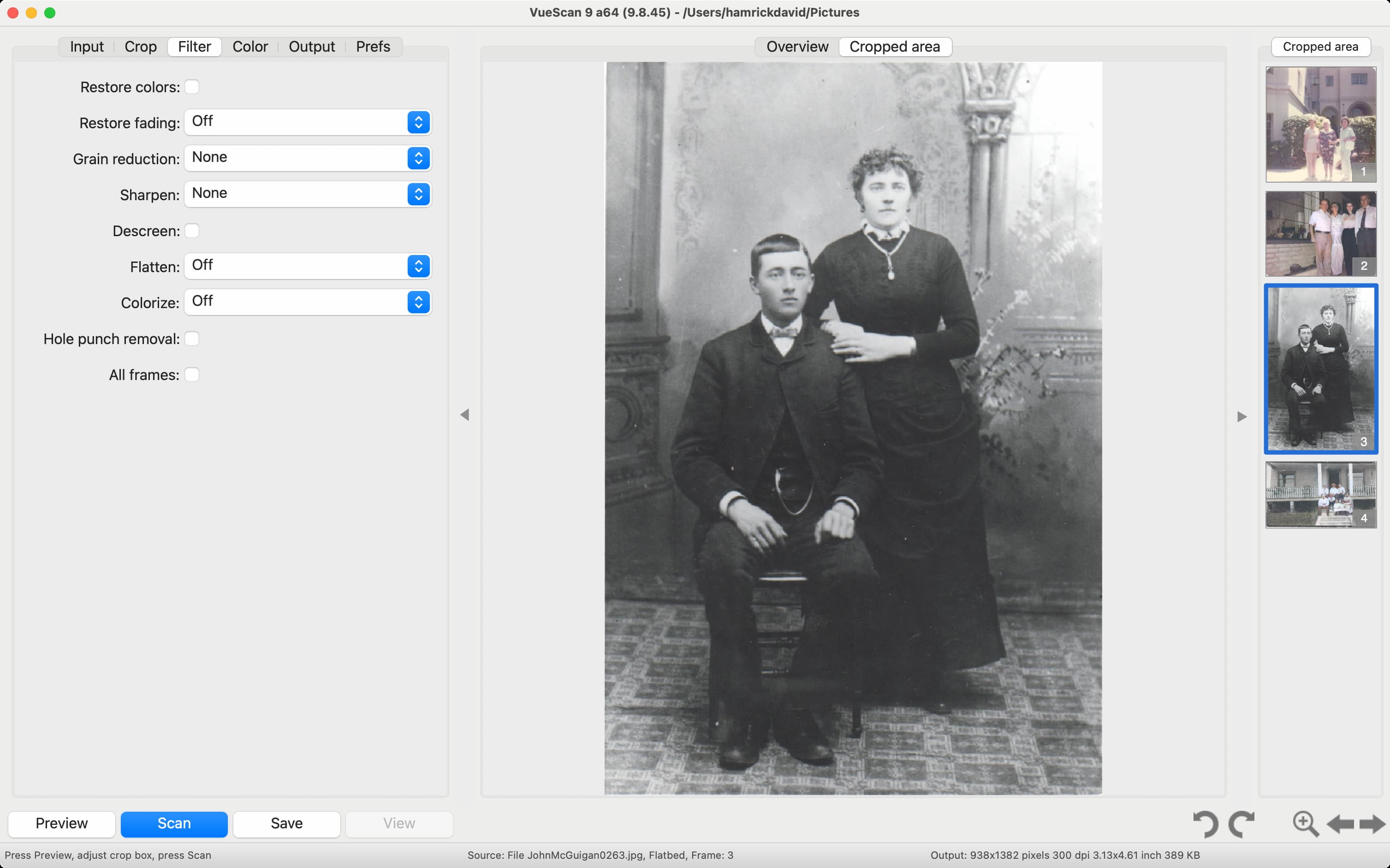
- Colorize Black & White Images
- Bring old memories to life with AI-powered colorization, transforming black-and-white photos into vibrant, realistic images.
- Auto-Crop
- VueScan can automatically detect and crop your scans, whether you're scanning photos, slides, or documents—no manual adjustments needed.
- Smart Media Type & Orientation Detection
- No need to configure settings—VueScan automatically detects what you're scanning, distinguishing between documents, photos, slides, and negatives, and corrects the orientation for you.
- AI Super-Resolution New
- Double your image resolution using AI-powered enhancement. Perfect for enlarging old photos and scanned slides. Learn how
- Touch Up New
- Paint over dust, scratches, and unwanted objects, and let on-device AI reconstruct the result. Three quality modes let you balance speed and detail. Read the blog post
 Nancy Sears
Hamrick Software is the ONLY resource I have found that supports our 12 year old Epson flatbed scanner. Even Epson can't do this.
 Ed Johnson
VueScan is amazing software. Ran my 20 year old scanner when no other software could!
 Tomas Larsson
Vuescan is for all practical purposes the best scanning software, have done around 60k scanns since 2016.
 Greg Wilson
Brilliant software - as a looooooong time scanner I was never happy with any of the (many) UI and actually threw out a good scanner b/c there was no update for a new OS at the time.
 Gil Schneider
I had tons of photos to scan, and after doing some research I decided to go for VueScan. I don't regret my decision. Scanning was a breeze and saved me a lot of time. I'm using a Brother All-in scanner which I bought 3 years ago and whilst its scanning software is not bad it's much slower and has way less options than VueScan. My operation system is Windows 10. I can recommend VueScan without hesitation. It''s worth the money.
 Victor C Glanville
Hamrick Software - I have been using VueScan for 10 years on several different computers using 3 scanner models. It really is an excellent product well maintained and exceptional value for money. It has given me a lot of pleasure over the years and helped produce some high quality scans of vintage family photography. I can recommend it to anyone.
 Tim Flanigan
I am absolutely in love with this software! My Nikon COOL SCAN V would only work with Windows 98 so it's been our of commission for quite a while. Thanks to VueScan, it back online and working better than ever. It is so efficient and easy to use that I'm looking forward to scanning several thousand slides that have been stored away and unusable. My scanner now works so much better than it did originally that I am incredulous. I purchased the Pro version and it is worth every penny of the reasonable price. WOW! Love it! Thank You Hamrick!!!
 Marc Bodewes
In Jan 2003 I bought VueScan for my Epson Perfection 1200. I used it a lot, more functions than the standard driver. Got new computers with new operating systems, forgot about VueScan. I got a new Epson scanner - old one doesn't have Win10 drivers. I remembered VueScan. Found it, downloaded the trial version, and my old EPSON 1200 scanner WORKED again. Wow, a purchase made in 2003, works on a PC with an operating system that doesn't exist in 2003. 17 YEARS later! And that for a very small amount of money. THIS IS SERVICE AND ADDING VALUE TO YOUR CUSTOMER!
Nancy Sears
Hamrick Software is the ONLY resource I have found that supports our 12 year old Epson flatbed scanner. Even Epson can't do this.
Ed Johnson
VueScan is amazing software. Ran my 20 year old scanner when no other software could!
 Peter Glusker
It's absurd that I couldn't use my Epson WF-3520 scanner when Mac OS updated, and Epson obviously has no interest in fixing the problem. Works perfectly with VueScan 9.
 Kathy Lower
Vuescan Professional saved me from having to buy a new scanner when Mac Catalina no longer supported my current scanner. Much less expensive than buying a new scanner, easy to use and great quality.
 Lee Washington
I’m very pleased with the software. It recognized all scanner features and allows me to continue scan to documents after macOS update.
 Senta Schuijers
Was going to send my very old HP scanjet to the landfill but thanks to Hamrick Software I won't have to!!! Very sustainable. It works on my Macbook with Catalina OS!!!!
 Peter Lucas
Rescued my Canon P-215 from the junk heap. Kept postponing updating my MacBook Air to High Sierra just to keep the Canon driver working. For some reason the driver and proprietary software stopped working today anyway. Thanks to VueScan, I get to use my scanner despite the fact that there's no longer support from Canon. Thank you!
 Peter Yurowitz
I have 3 scanners in perfect condition, each no longer supported by their respective manufacturers, and no longer recognized by the latest version of MacOS. It was only after I purchased a new, supported and recognized scanner (big mistake) that I discovered VueScan. The product instantly identified the id, connected scanners, and brought them back to life. The new scanner is now sitting around collecting dust. An absolutely magnificent product. Highly recommended.
Trusted by over 1,000,000 customers across the globe including





Microtek FilmScan 2700
Microtek FilmScan 2700 Technical Information
VueScan is compatible with the Microtek FilmScan 2700 on Windows and macOS.
You need to install the CyberView X driver to use this scanner on Windows and macOS.
This scanner isn't supported on Mac OS X 10.7 (Lion) and later, since CyberViewX uses a PowerPC plugin for this scanner and Rosetta isn't available with 10.7 and later.
On Mac OS X prior to 10.7, you need to use the x32 version of VueScan 9.0.96 with Rosetta. To do this:
- Click on the VueScan icon while holding the Control key
- Choose 'Get Info'
- Check 'Open using Rosetta'
Film Scanning:
Yes
Infrared lamp:
No
Windows:
Yes
Mac:
Yes
Linux:
No
USB:
Yes
SCSI:
No
Firewire:
No
Network:
No
USB Vendor ID:
05e3
USB Product ID:
0129
Optical DPI:
2700
Every day thousands of people download VueScan to fix their old scanner
Now it's your turn to bring your scanner back to life - and keep it out of the landfill